


iClicker Student
1.3653.00 Reviews
App Specs
- Version
- 8.2.0
- Updated On
- License
- Free
- Downloads
- 500,000+
- Developer
- Macmillan New Ventures
- Categories
- Education
- Platform
- Android
Screenshots
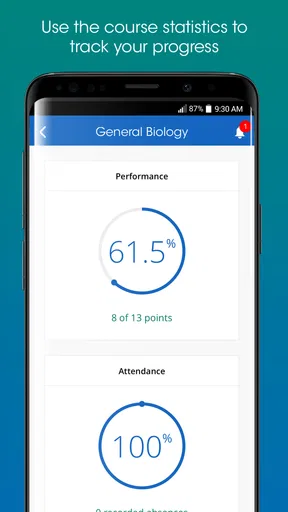
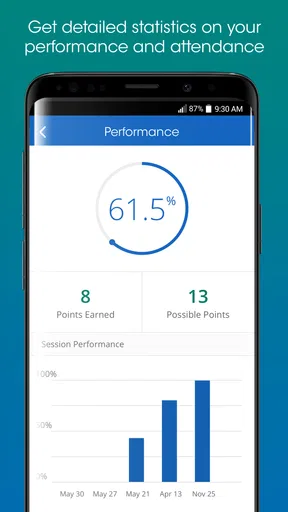
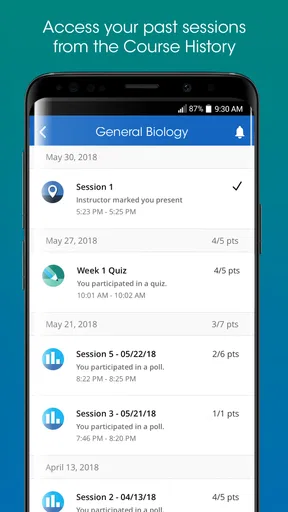
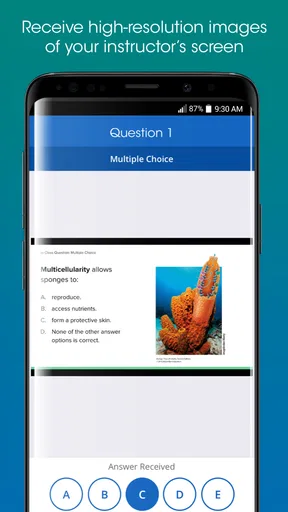
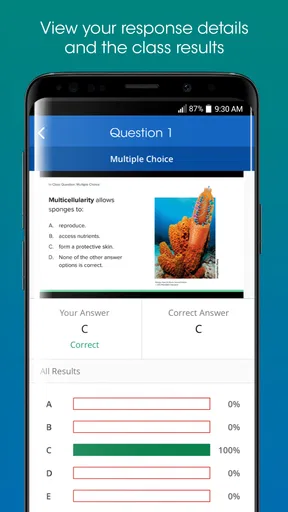
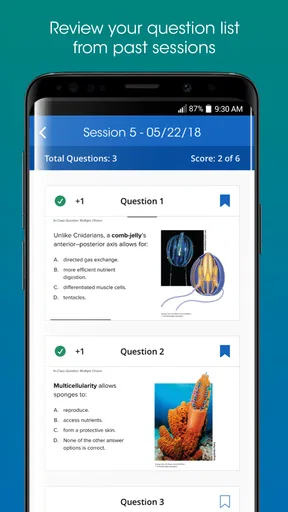
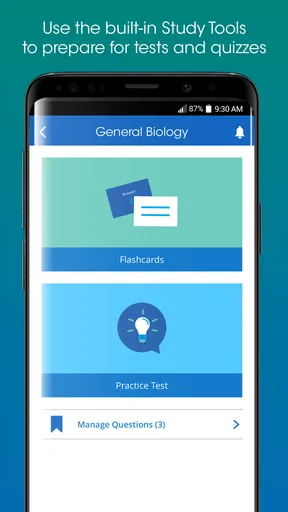
 Analysis by AppCompare
When a lecturer asks a room full of students to answer a poll, the difficult part is rarely choosing an answer. The real friction is getting everyone into the same system quickly, responding before the class moves on, and knowing whether the response actually reached the instructor. iClicker Student is built for that narrow classroom moment. Formerly known as iClicker Reef, it turns an Android device into a way to respond to classroom polls, making it more convenient than carrying a separate response device when a course already uses the iClicker system.
I approached it as an education app rather than a general study tool, and that distinction matters. It is not designed to replace a notebook, explain difficult concepts, or organize an entire semester. Its value appears during live teaching: the instructor asks something, I open the app, choose a response, and wait for the classroom activity to continue. That focused purpose can be useful, but it also means the app depends heavily on how the course is set up.
Starting with the classroom requirement
The first question I would ask before installing it is not whether the app is free. It is whether my instructor expects students to use iClicker Student. A polling app only helps when the lecturer, course, and classroom workflow are connected to the same platform. If a teacher uses paper questions, a different polling service, or a physical clicker without accepting mobile responses, this app has no meaningful role during that class.
That dependence is the central trade-off. The app is free to install, and its content rating is Everyone, so it is approachable for a broad range of students. However, optional in-app purchases range from $5.99 to $49.99 per item. I would therefore check the course instructions carefully before assuming that installing the app is the complete cost of participation. The relevant question is whether a class requires a particular access arrangement, not simply whether the download itself costs anything.
Macmillan New Ventures is the developer, and the app has been available since December 5, 2015. Its current version is 8.2.0, with Android 8.0 as the minimum operating system. That makes the first practical check simple: confirm that the phone is compatible and that it is the device I will actually bring to class. A student who keeps an older phone as a backup should test that device before relying on it for graded or attendance-related polling.
Moving from installation to the first response
My recommended setup is to install the app before the first lecture, not while the instructor is already waiting for answers. I would open it at home, review the sign-in or course-joining steps presented by the app, and make sure I understand how the class identifies itself. The exact handoff comes from the course: the instructor or course materials must provide whatever information is needed to connect the student account or device to the correct class.
This is one of the less obvious points about classroom response software. A student can be technically ready but still connected to the wrong course context. If several classes use the same platform, I would pay attention to the course name shown on screen before answering. A response sent under the wrong class may feel successful from the student’s side while failing to help the intended instructor.
Worth Reading Before You Choose

EA SPORTS FC Mobile 26 Is a Bigger Football Game, but It Takes Time

Flipboard Shows What News Apps Must Do Beyond the Feed

Switching to Android Auto Means Rethinking Your Driving Routine

Google Calendar Makes a Crowded Week Easier to Manage

Ludo King Makes the Most of the Minutes Between Plans

Baby Panda World Brings Quick Play to Modern Phones, but Its Game Library Feels Busy
Once the class is joined, the live workflow should be short. The teacher presents a poll, I open the relevant class activity, select the answer, and submit it. I would keep the app easy to reach rather than burying it in a folder, especially in a lecture where questions appear without much warning. A phone with a low battery, a distracting notification, or a locked screen can create more delay than the poll itself.
I also prefer to answer with the same level of care I would use on paper. The speed of a mobile interface can encourage tapping the first option that looks familiar. In a science or mathematics class, a poll may be checking a misconception rather than asking for a final exam answer. The useful habit is to read the entire prompt, select deliberately, and confirm that the chosen option remains selected before moving on.
What the student hands off to the instructor
The important handoff is not from the app to me; it is from my device to the classroom system used by the instructor. I provide a response, while the lecturer uses the collected responses to decide whether to explain a point, continue, or revisit an idea. That makes the app part of a larger teaching loop rather than a standalone quiz product.
In a realistic lecture, the sequence might look like this: the instructor pauses after explaining a difficult concept, displays a question, and gives the room a short window to respond. I unlock my phone, open the class, select an option, and submit. The teacher then looks at the overall response and decides whether the class is ready to move forward. The outcome is not merely that my individual tap was recorded; it is that my answer contributes to a shared snapshot of understanding.
This workflow is especially useful when a class is too large for raised hands to give a reliable picture. A few confident students can dominate a verbal discussion, while a poll gives quieter students a way to participate. I find that valuable in subjects where the instructor needs to distinguish between “most people understand this” and “only the students willing to speak think they understand this.”
There is also a handoff between the student and the course administrator. If participation affects attendance, marks, or access to a lesson activity, I would not assume that a visible confirmation on my phone settles the matter. I would keep the app updated, use the correct class, and report a failed response promptly through the course’s normal channel. That is not busywork: the instructor controls how responses are interpreted, and the app cannot repair a course-enrollment mistake after the fact.
Where it fits better than ordinary alternatives
Compared with raising a hand, iClicker Student offers a more private way to answer and gives the instructor responses from more of the room. That is its clearest advantage. A student who is unsure may be more willing to choose an answer privately than announce it aloud, and the teacher can see whether confusion is widespread without putting individuals on display.
Compared with paper slips, the mobile route removes the need to distribute, collect, and sort physical responses during a lesson. It can also make a quick question feel less disruptive when the class is already working digitally. Compared with a separate hardware clicker, a phone may be one less object to remember. Those benefits are practical rather than glamorous, but they are exactly why this type of app can earn a place in a classroom.
The comparison changes when the goal is studying alone. A flashcard app is better for repeated recall, a note-taking app is better for building a personal record of the lecture, and a full learning platform is better for assignments and course materials. iClicker Student is not the option I would choose if I wanted practice questions on demand or a detailed review history. Its strength is synchronized participation during a live class, not independent learning after class.
There is another trade-off against browser-based polling. A browser can be convenient when a teacher sends a one-time question to a mixed audience, while a dedicated student app may make more sense when a course repeatedly uses the same classroom response workflow. On the other hand, every dedicated app adds another account or interface to manage. If a course uses polling only once, the setup may feel disproportionate to the benefit.
Small habits that make live polling less frustrating
My first practical tip is to test the complete route before the first graded session. Do not stop at installing the application. Open it, make sure the course appears as expected, and learn where an active question is likely to show up. If the instructor offers a practice poll, use it to confirm that the response process feels familiar rather than waiting for an important question.
My second tip is to treat course selection as part of every session. Students often take the same device from one lecture to another, and the danger is not only forgetting the app; it is answering in the wrong classroom context. I would glance at the active course before submitting, particularly on days when two instructors use similar names or when a timetable changes.
My third tip is to separate technical troubleshooting from academic decision-making. If a question is closing and the app is slow, I would first check the obvious issues: the correct class, the visible question, and the selected answer. I would avoid repeatedly tapping the screen in panic, because that makes it harder to tell whether the response has changed. If the problem persists, I would note the time and question and tell the instructor after the activity rather than silently assuming the system recorded everything.
A fourth useful habit is to keep a personal learning note after a poll exposes uncertainty. The app may help me submit an answer, but the educational value comes from what happens next. If the class discussion reveals why my choice was wrong, I would write that explanation in my normal notes. This turns a fleeting tap into something I can revisit before an exam, without pretending that the polling app itself is a complete revision system.
How the result feels in everyday use
When the course is properly configured, the result is pleasantly simple. I can participate without interrupting the lecture, and the instructor receives a broader response than a conversation based only on volunteers. The app stays in the background of the teaching experience, which is exactly where I want it. A classroom response tool should not demand attention for its own sake.
Its usefulness is strongest in lessons built around frequent checks for understanding. In a large introductory course, an instructor can ask whether students would choose one explanation over another, then adjust the next few minutes of teaching. In a smaller seminar, the advantage may be less dramatic because discussion already provides direct feedback. The app can still support a quick anonymous-feeling pulse, but it does not automatically improve a class that already has a strong conversation.
The app’s scale suggests that it is not an obscure experiment: it has passed 500 thousand installs, alongside an average rating of 1.3 from around 2.2 thousand ratings and 653 written reviews. I would read that combination carefully. The install figure shows that many people have tried it, but the low average rating is a serious warning about user satisfaction. It may reflect technical problems, account or course friction, expectations about payment, or situations where the app could not work independently of an instructor’s setup. Either way, I would not recommend installing it blindly and assuming the experience will be smooth.
That rating also changes how I judge the app. I can see the logic of a focused classroom tool while still expecting rough edges. A student’s experience depends on several links: compatible Android software, a usable phone, the right course connection, an instructor who supports the system, and a response that reaches the intended activity. If any link fails, the app may feel useless even though the basic idea is sound.
Where the workflow breaks
The most obvious failure point is connectivity or device readiness during the exact moment a poll is open. A classroom can be crowded, a phone can be nearly out of power, or the app can take longer to load than the instructor allows. I would not make this my only way to participate if the course treats every response as high stakes. Keeping the instructor’s instructions and a backup way to report a problem is sensible.
Another break occurs when the course setup is unclear. If students are told simply to “download the app” without knowing how to join the class or whether a purchase is required, confusion is predictable. In that situation, the problem is not solved by repeatedly reinstalling the app. I would look for the course-specific instructions first and ask the instructor or teaching staff which identity, class, or access route is expected.
The app is also a poor fit for students who want a private study environment. It is tied to live classroom interaction, so someone learning independently will get more from a dedicated quiz or flashcard tool. It is similarly unsuitable as a universal polling solution for clubs, meetings, or casual groups unless those groups already use the compatible classroom workflow. The store summary is clear about its purpose: responding to classroom polls from an Android device.
Privacy and attention are practical considerations too. Using a phone in class can invite unrelated distractions, and some students may prefer not to use their personal device for academic participation. A physical clicker may be better for someone who wants a single-purpose object, while a browser-based option may be preferable when avoiding another installed application matters more than having a dedicated interface.
Who should use it and who should skip it
I would recommend iClicker Student to a student whose instructor explicitly uses iClicker polling, especially in a large course where verbal participation does not show the whole room’s understanding. It is also a reasonable choice for someone who already carries an Android phone and wants to avoid a separate response device. The app is most valuable when polls are frequent enough to shape the lesson rather than appearing as an occasional novelty.
I would be more cautious if participation has financial or grading consequences. Because optional purchases exist and the overall rating is low, I would confirm the course’s access expectations before committing. I would also test the app on the actual phone used in class, not just assume that meeting the Android 8.0 requirement guarantees a trouble-free session.
I would skip it when the instructor does not use the iClicker system, when the course relies mainly on written assignments, or when my main goal is self-paced revision. In those cases, the app adds setup without solving the real problem. A dedicated study tool, the course’s existing learning platform, or even a simple notebook may be more useful.
My final take on this classroom companion
iClicker Student makes sense when it is treated as one link in a classroom workflow: the instructor asks, the student responds, the system hands the response back to the teacher, and the lesson changes accordingly. I like that it can give quieter students a low-pressure way to participate and make large-class feedback more representative. I also appreciate that using a phone can be simpler than carrying another device.
At the same time, I would not call it a universally dependable education app. Its usefulness begins and ends with course compatibility, and the low average rating means I would approach setup with care rather than confidence. The free download is appealing, but the in-app purchase range makes it important to understand the class arrangement before relying on it.
My recommendation is therefore conditional but clear: install it when your instructor requires or genuinely supports it, complete the course setup early, verify the active class before each response, and keep a backup plan for technical trouble. In that specific situation, it can quietly do its job. Outside that situation, the app is more of a classroom access tool than a general learning companion, and choosing something designed for independent study will usually give better results.
Pros
- Quickly join classes with a course-specific access code.
- Supports live polls
- quizzes
- and attendance in one app.
- Immediate response feedback helps students check understanding.
- Works with both instructor-led questions and self-paced activities.
- Available on Android and iOS for convenient classroom access.
Cons
- Some courses require a paid subscription or instructor-provided license.
- App usefulness depends heavily on instructor adoption and setup.
- Connection issues can prevent answers from being submitted on time.
- Notifications and background activity may affect battery life.
- The interface can feel confusing when multiple courses are active.
FAQs for iClicker Student
What is iClicker Student, and how does it work?
iClicker Student is a classroom participation app that lets students respond to instructor questions using an Android or iOS device. After joining a course with the instructor’s details or access code, you can answer live polls, quizzes, and attendance prompts. Responses are sent through the internet, and participation or grades are recorded according to the instructor’s settings.
Do I need an account or an access code to use iClicker Student?
In most cases, you need to sign in or create an iClicker account before joining a class. Your instructor normally provides the course name, join instructions, or access code required to connect the app with the correct class. Requirements can vary by institution, so it is best to follow the instructions supplied by your teacher rather than joining a similarly named course.
Does iClicker Student require an internet connection?
Yes, iClicker Student generally relies on Wi-Fi or mobile data to receive questions and submit answers during class. If your connection is unstable, responses may be delayed or fail to register, which can affect participation credit. Before class, check that the app has permission to use mobile data and consider connecting to the recommended campus Wi-Fi network.
Can iClicker Student be used for attendance and graded activities?
The app can support attendance, live polling, quizzes, and other participation activities, but the exact features depend on how your instructor configures the course. Some questions may be practice-only, while others can contribute to your grade. Attendance may also require location, course, or session verification, so simply opening the app does not always guarantee credit.
What should I do if my answer or attendance is not recorded?
First, confirm that you joined the correct course and that the question or session is still active. Check your internet connection, update the app, and make sure notifications and network permissions are enabled. If the issue continues, avoid repeatedly submitting random answers and contact your instructor or campus support team, since they may be able to verify participation and correct technical problems.


